

Excel has been one of the most trusted tools for working with data for many years. From making simple tables to preparing financial reports, tracking sales, creating pivot tables, and analysing business performance, Excel continues to be used across almost every industry. For many professionals, it is the first tool they learn when they begin working with data.
However, the world of analytics has changed. Today, companies do not only want static spreadsheets. They want interactive dashboards, automated reports, real-time insights, and visual stories that can help teams make faster decisions. This is where Power BI becomes important. It allows professionals to connect data from different sources, clean it, build relationships, create visuals, and share dashboards in a much more scalable way.
For Excel users, learning Power BI is not a difficult jump. In fact, it is a natural next step. Many concepts used in Power BI, such as tables, formulas, charts, Power Query, and data modelling, are connected to skills that Excel users may already know. The difference is that Power BI helps take those skills to a more advanced and professional level.
Understanding the Difference Between Excel and Power BI
Excel and Power BI are both powerful data tools, but they are designed for slightly different purposes. Excel is mainly used for spreadsheets, calculations, quick analysis, data entry, budgeting, and flexible reporting. Power BI, on the other hand, is designed for business intelligence, interactive dashboards, automated reporting, and large-scale data visualisation.
Excel is often the starting point for most professionals because it is simple, familiar, and highly flexible. You can enter data manually, use formulas, create pivot tables, prepare charts, and build reports quickly. This makes Excel very useful for day-to-day work, especially when the dataset is small or the analysis needs frequent manual changes.
Power BI is more useful when the data becomes larger, more connected, and more repetitive. For example, if a company needs to track sales every month across regions, products, customers, and teams, Power BI can connect to the data source, refresh the report, and update the dashboard automatically. This saves time and reduces manual errors.
| Feature | Excel | Power BI |
| Main use | Spreadsheets, calculations, and quick analysis | Dashboards, reporting, and business intelligence |
| Best for | Small to medium datasets | Larger and connected datasets |
| Data entry | Allows manual data entry | Mainly used for analysing existing data |
| Visuals | Charts and pivot charts | Interactive reports and dashboards |
| Automation | Often requires manual updates | Supports automated refresh and reporting |
| Sharing | Usually shared as files | Can be published and shared online |
| Interactivity | Limited filters and slicers | Strong interactive filters, slicers, and drill-downs |
| Data modelling | Basic relationships through lookup functions | Strong relationships between multiple tables |
A simple way to understand the difference is this: Excel is excellent when you want to work directly with data, while Power BI is better when you want to turn data into interactive insights.
- For example, an HR executive may use Excel to maintain employee records, calculate attendance, or prepare a monthly hiring tracker. But if the same HR team wants an interactive dashboard showing hiring progress by department, attrition by month, gender diversity, and employee location, Power BI will be more useful.
- Similarly, a sales team may use Excel to calculate monthly targets and commissions. But if managers want to track revenue by region, product, salesperson, and customer segment in one dashboard, Power BI makes the process easier and more professional.
This does not mean Power BI replaces Excel completely. In most workplaces, both tools are used together. Excel remains useful for quick calculations and flexible analysis, while Power BI helps create structured, automated, and visual reporting systems.
For anyone upskilling in analytics, the goal should not be to choose between Excel and Power BI. The smarter approach is to use Excel as the foundation and Power BI as the next level. Excel helps you understand data. Power BI helps you present that data as powerful business insights.
Step 1: Strengthen Your Excel Foundation First
Before learning Power BI, it is important to build a strong foundation in Excel. Many beginners try to jump directly into Power BI dashboards, but they struggle because they are not comfortable with basic data structure, formulas, tables, and reporting logic. Power BI becomes much easier when you already understand how data works inside Excel.
Excel teaches some of the most important habits needed for analytics. It helps you understand how data is arranged, how calculations are made, how errors appear, and how summaries are created. These same ideas are used in Power BI, but in a more advanced and automated way. Some Excel skills you should strengthen before moving to Power BI include:
| Excel Skill | Why It Matters for Power BI |
| Tables | Helps you understand structured data |
| Sorting and filtering | Helps you explore and organise data |
| Basic formulas | Builds calculation logic |
| XLOOKUP or INDEX-MATCH | Helps you understand data matching |
| Pivot tables | Builds summarisation skills |
| Charts | Helps you understand visual reporting |
| Conditional formatting | Trains you to highlight important patterns |
| Data validation | Helps reduce data entry errors |
| Basic cleaning | Prepares you for Power Query |
- Pivot tables are especially useful because they teach you how to summarise large data quickly. For example, you can use a pivot table to find total sales by region, average order value by product category, or employee count by department. These are the same types of summaries that later become Power BI visuals.
- Another important skill is working with clean data. Your Excel sheet should have proper column names, no merged cells, no unnecessary blank rows, and one type of information in each column. For example, instead of keeping city and state in one column, it is better to separate them. This makes the data easier to analyse later in Power BI.
- You should also become comfortable with simple formulas such as SUM, AVERAGE, COUNT, IF, SUMIFS, COUNTIFS, XLOOKUP, and percentage calculations. These formulas help you understand the logic behind business calculations. When you later learn DAX in Power BI, this Excel knowledge will make the transition easier.
The goal is not to become an Excel expert before touching Power BI. The goal is to become confident with the basics that matter for analytics. If you can clean a sheet, build a pivot table, create a chart, and explain the result clearly, you already have a good starting point for Power BI. A strong Excel foundation makes Power BI less intimidating. It helps you move from manual reporting to automated dashboards with more confidence and clarity.
Step 2: Learn Power Query for Data Cleaning
Power Query is one of the most important skills to learn when moving from Excel to Power BI. It helps you clean, transform, and organise data before building reports and dashboards. Many Excel users already spend a lot of time cleaning messy files manually. Power Query makes this process faster, more structured, and repeatable.
In simple terms, Power Query is a data cleaning tool. It allows you to import data from different sources, remove errors, change formats, combine files, and prepare the data for analysis. The best part is that once you create the cleaning steps, you do not have to repeat the same work every time. You can simply refresh the data, and Power Query applies the same steps again.
For example, imagine you receive a monthly sales file with extra blank rows, spelling mistakes, duplicate entries, and inconsistent date formats. Without Power Query, you may clean the file manually every month. With Power Query, you can create a cleaning process once and reuse it whenever a new file is added. Some important Power Query skills include:
| Power Query Skill | Why It Is Useful |
| Importing data | Brings data from Excel, CSV, databases, or online sources |
| Removing duplicates | Prevents double counting |
| Changing data types | Ensures dates, numbers, and text are read correctly |
| Splitting columns | Separates combined information, such as full name into first and last name |
| Merging columns | Combines useful fields where needed |
| Filtering rows | Removes unnecessary records |
| Replacing values | Fixes spelling errors or inconsistent entries |
| Appending queries | Combines similar tables into one |
| Merging queries | Joins data from different tables |
| Removing errors | Improves data reliability |
- Power Query also helps users develop better data habits. It encourages them to think about data structure before analysis. Instead of making changes randomly in a spreadsheet, users create clear transformation steps. This makes the work easier to review, correct, and repeat.
- This skill is especially important for professionals who prepare monthly reports, sales dashboards, HR trackers, finance reports, inventory summaries, or customer analysis. In all these cases, the data often comes from different files or systems. Power Query helps bring everything together in a clean and usable format.
- For Excel users, Power Query is the perfect bridge to Power BI. It feels familiar because it is also available in Excel, but in Power BI it becomes even more powerful. Once you understand Power Query, you will find it much easier to prepare data for dashboards and automated reporting.
Learning Power Query is not just a technical step. It is a productivity upgrade. It saves time, reduces manual errors, and allows you to spend more energy on analysis instead of repetitive cleaning work.
Step 3: Understand Data Modelling and Relationships
Once you learn how to clean data, the next step is understanding data modelling. This is one of the biggest differences between Excel and Power BI. In Excel, many people usually keep all the data in one large sheet. In Power BI, data is often divided into different tables that are connected through relationships. Data modelling means arranging data in a structured way so that Power BI can analyse it correctly. Instead of creating one overloaded table, you create separate tables for different types of information. For example, a sales dashboard may include:
| Table | What It Contains |
| Sales table | Order ID, date, product ID, customer ID, quantity, sales amount |
| Product table | Product ID, product name, category, price |
| Customer table | Customer ID, customer name, city, region |
| Date table | Date, month, quarter, year |
Power BI connects these tables using common fields, such as Product ID, Customer ID, or Date. Once the relationships are created, you can analyse sales by product, region, customer type, month, quarter, or year. This approach is much cleaner than keeping everything in one sheet. It reduces duplication, improves performance, and makes dashboards easier to manage. Some basic data modelling concepts beginners should understand include:
| Concept | Simple Meaning |
| Fact table | A table that contains measurable events, such as sales transactions |
| Dimension table | A table that describes the data, such as products, customers, or dates |
| Primary key | A unique ID in a table, such as Product ID |
| Relationship | A connection between two tables |
| One-to-many relationship | One item in a dimension table connects to many records in a fact table |
| Star schema | A clean model where one fact table connects to several dimension tables |
| Filter direction | The way filters move between related tables |
For example, in a star schema, the sales table sits at the centre, while product, customer, region, and date tables are connected around it. This makes it easy to filter and analyse data from different angles. Data modelling may sound technical at first, but it is simply about organising data properly. If the model is weak, even a beautiful dashboard can show wrong results. If the model is strong, calculations become easier, visuals work better, and reports become more reliable.
For Excel users, this step requires a small shift in thinking. Instead of asking, “How can I put everything in one sheet?”, start asking, “Which tables should be separate, and how should they connect?” This mindset is very important for growing from basic reporting to professional analytics. In Power BI, strong dashboards are built on strong data models. That is why learning relationships and data modelling is a key step in upskilling from Excel to Power BI.

Step 4: Learn DAX for Better Calculations
After learning data cleaning and data modelling, the next step is to learn DAX. DAX stands for Data Analysis Expressions. It is the formula language used in Power BI to create calculations, measures, and deeper business insights. For Excel users, DAX may feel familiar because it uses formulas. However, DAX works differently from normal Excel formulas. In Excel, formulas are usually written cell by cell. In Power BI, DAX calculations work across tables, relationships, filters, and visuals.
For example, in Excel, you may calculate total sales by using a simple SUM formula in a column. In Power BI, you can create a DAX measure for total sales, and that same measure can automatically change based on the dashboard filter. If the user selects one region, it shows sales for that region. If the user selects one month, it shows sales for that month. Some beginner-friendly DAX concepts include:
| DAX Concept | Simple Meaning |
| Measure | A calculation that changes based on filters in the report |
| Calculated column | A new column created using a formula |
| SUM | Adds values |
| AVERAGE | Finds average value |
| COUNT | Counts rows or values |
| DISTINCTCOUNT | Counts unique values |
| CALCULATE | Changes the filter context of a calculation |
| Time intelligence | Helps calculate monthly, quarterly, yearly, or year-to-date values |
A beginner can start with simple measures such as:
| Business Question | DAX Measure Example |
| What is total revenue? | Total Sales |
| What is total profit? | Total Profit |
| What is the profit margin? | Profit Margin % |
| How many customers purchased? | Unique Customers |
| What is the average order value? | Average Order Value |
| How much sales happened this year? | Year-to-Date Sales |
- DAX becomes powerful because it helps you move beyond simple totals. You can calculate growth rates, contribution shares, moving averages, year-to-date performance, month-on-month changes, customer retention, and many other business metrics.
- For example, a sales dashboard becomes much more useful when it does not only show total sales, but also shows sales growth, profit margin, top-performing products, regional contribution, and performance against targets.
- The important thing is not to learn all DAX functions at once. Beginners should start with the most commonly used formulas and understand how filters affect results. Once the basics are clear, advanced DAX becomes easier.
In 2026, DAX is an important skill for anyone who wants to move from simple dashboard creation to serious analytics. It helps professionals create meaningful business calculations and answer sharper questions. If Excel teaches you how to calculate, DAX teaches you how to calculate intelligently within an interactive dashboard.
Step 5: Build Dashboards and Tell Stories with Data
Once the data is cleaned, modelled, and supported with the right DAX calculations, the next step is to build dashboards. This is where Power BI becomes truly powerful. A dashboard does not only display numbers; it helps users understand performance, identify patterns, and make better decisions.
A good Power BI dashboard should answer clear business questions. For example:
- Are sales increasing or declining?
- Which region is performing best?
- Which products are driving revenue?
- Where are costs rising?
- Which customer segment needs attention?
- Are we meeting our monthly or yearly targets?
The goal is not to add too many visuals on one page. The goal is to present the most important information in a simple and useful way. Some important dashboard-building skills include:
| Dashboard Skill | Why It Matters |
| KPI cards | Show important numbers clearly |
| Bar charts | Compare categories such as products or regions |
| Line charts | Show trends over time |
| Slicers | Allow users to filter the report |
| Tables and matrices | Show detailed information |
| Drill-downs | Help users explore deeper levels of data |
| Tooltips | Add extra information without clutter |
| Clean layout | Makes the report easier to read |
A beginner should start with simple dashboards. For example, a sales dashboard can include total revenue, profit margin, monthly sales trend, top products, sales by region, and customer segment performance. An HR dashboard can include employee count, attrition rate, hiring progress, department-wise headcount, and gender diversity.
Data storytelling is equally important. A dashboard should not look like a collection of random charts. It should guide the viewer from the main insight to the supporting details. The top section can show key numbers, the middle section can explain trends and comparisons, and the lower section can show detailed breakdowns. For example, instead of only showing “Revenue: ₹50 lakh,” a better dashboard story would show:
- Total revenue and profit margin
- Monthly revenue trend
- Region-wise performance
- Top and bottom products
- Reasons for growth or decline
This helps the user understand not only what happened, but also why it happened and what action may be needed. Design also matters. Use clear titles, avoid unnecessary colours, keep enough white space, and make sure charts are easy to read. A dashboard should be attractive, but it should never sacrifice clarity for decoration.
In 2026, professionals who can build meaningful dashboards will have a strong advantage in analytics careers. Companies want people who can turn raw data into decision-ready insights. Power BI helps Excel users move from static reports to interactive business storytelling, making their work more useful, professional, and impactful.
How to turn Excel Skills into an Analytics Career Path?
Moving from Excel to Power BI is one of the most practical ways to grow in an analytics career. Excel gives you the foundation: formulas, tables, charts, pivot tables, and basic reporting. Power BI takes these skills further by helping you clean data, connect multiple sources, build relationships, create interactive dashboards, and share insights more professionally.
The best part is that this transition does not require you to leave Excel behind. Excel remains useful for quick calculations, small reports, and flexible analysis. Power BI simply adds a stronger layer of automation, visualisation, and business intelligence. Together, both tools can make you much more effective as a data professional. A simple career roadmap can look like this:
| Stage | Skill Focus | Career Outcome |
| Beginner | Excel basics, formulas, charts, pivot tables | MIS executive, reporting assistant, operations analyst |
| Intermediate | Power Query, data cleaning, dashboard basics | Data analyst, business analyst, reporting analyst |
| Advanced | DAX, data modelling, advanced visuals | Power BI developer, BI analyst, analytics specialist |
| Career Growth | Data storytelling, business understanding, automation | Analytics consultant, BI manager, decision-support specialist |
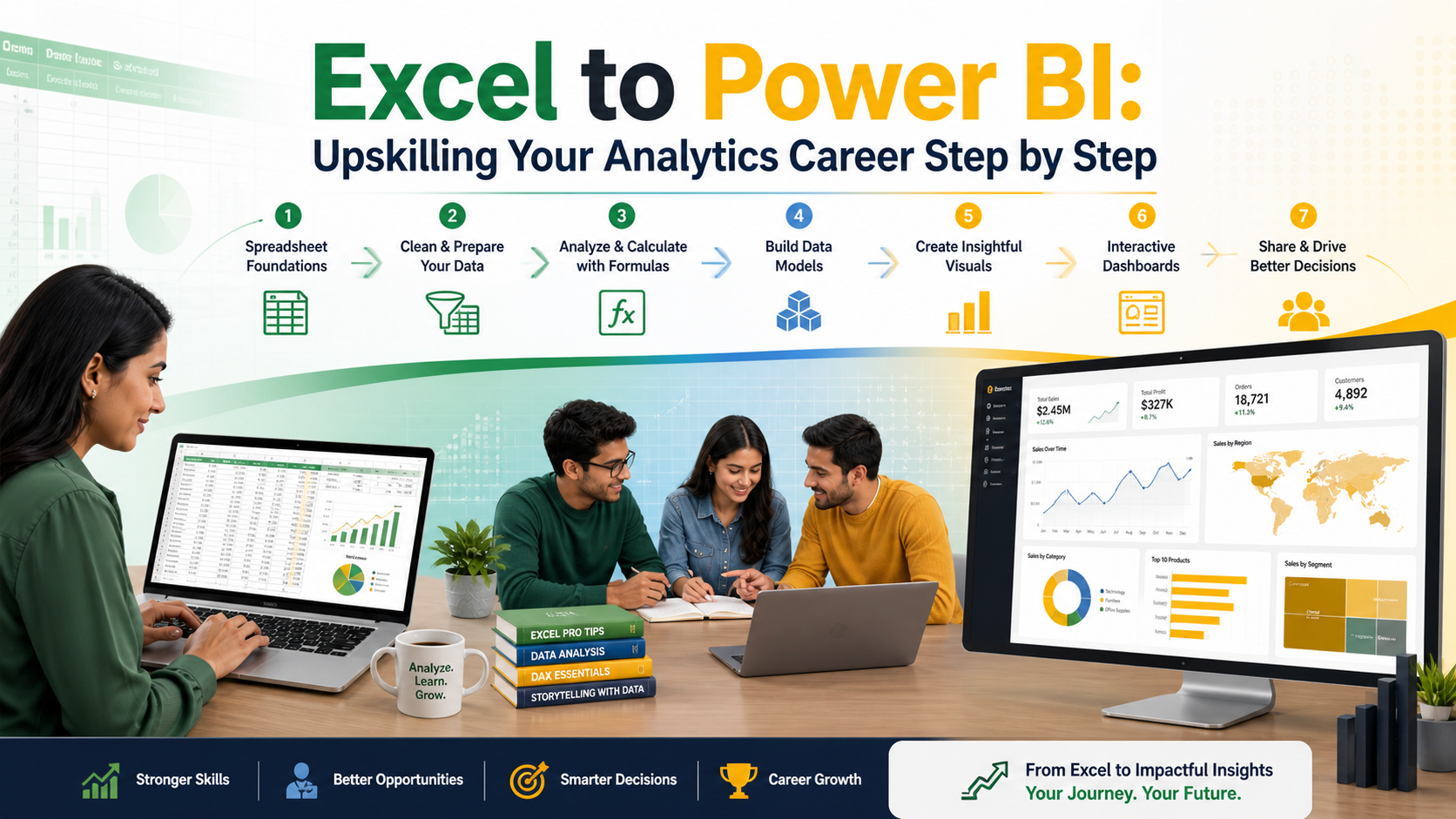
To grow step by step, start by strengthening Excel, then learn Power Query, understand data modelling, practise DAX, and finally build dashboards that solve real business problems. You can begin with simple projects such as a sales dashboard, HR dashboard, finance tracker, customer analysis report, or inventory dashboard.
In 2026, companies are looking for professionals who can do more than prepare spreadsheets. They need people who can turn data into clear, reliable, and actionable insights. This is where Power BI gives Excel users a strong advantage.
In simple terms, Excel helps you work with data. Power BI helps you communicate data. When you combine both, you become better prepared for modern analytics roles and long-term career growth.